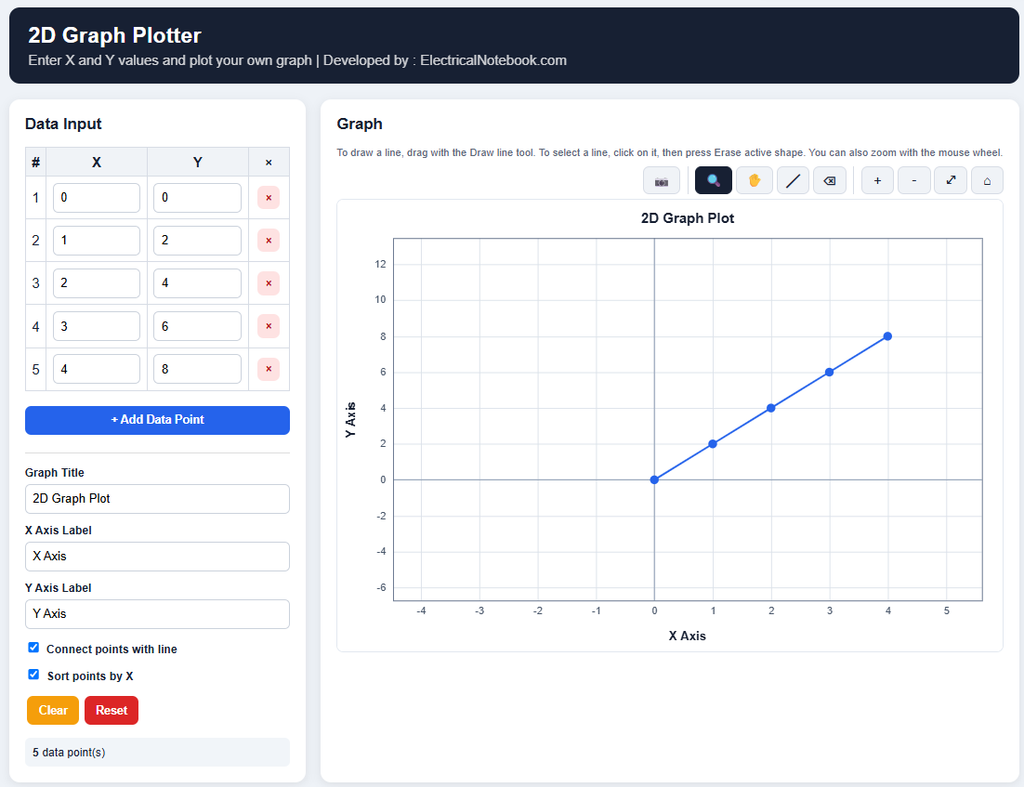
Click Here to PLOT 2D GRAPH (For best Experience use Desktop Mode)
How to Use the 2D Graph Plotter
1. Open the file – No internet is needed.
2. Enter your data
- Use the Data Input table on the left. Type your X and Y values in each row.
- Click + Add Data Point to add a new row.
- Click × at the end of a row to delete that point.
- The graph updates automatically as you type.
3. Set the labels
- Type a Graph Title, X Axis Label and Y Axis Label, for example “Time (s)” and “Voltage (V)”.
- Tick Connect points with line to join the points. Untick it to show only dots.
- Keep Sort points by X ticked so the line does not zigzag.
4. Use the tools above the graph
| 📷 | Download the graph as a PNG image |
| 🔍 Zoom | Drag a box over the area you want to zoom into |
| ✋ Pan | Drag the graph to move around |
| ╱ Draw line | Drag to draw a line, for example a best-fit line |
| ⌫ Erase | Delete the selected line |
| + / - | Zoom in / zoom out |
| ⤢ Autoscale | Fit the graph to all your data |
| ⌂ Reset axes | Go back to the original view |
5. Draw and erase a line
- Click the Draw line tool, then drag on the graph. The new line turns thick and yellow, which means it is selected.
- To select an older line, click on it. Then press ⌫ Erase (or the
Deletekey) to remove it.
6. Other tips
- Scroll the mouse wheel on the graph to zoom in and out.
- Hover over a point to see its exact X and Y values.
- Clear removes all data points. Reset brings back the example data and removes all drawn lines.
- Always click 📷 to save your graph before you close the page, because the data is not saved.
Views: 189